
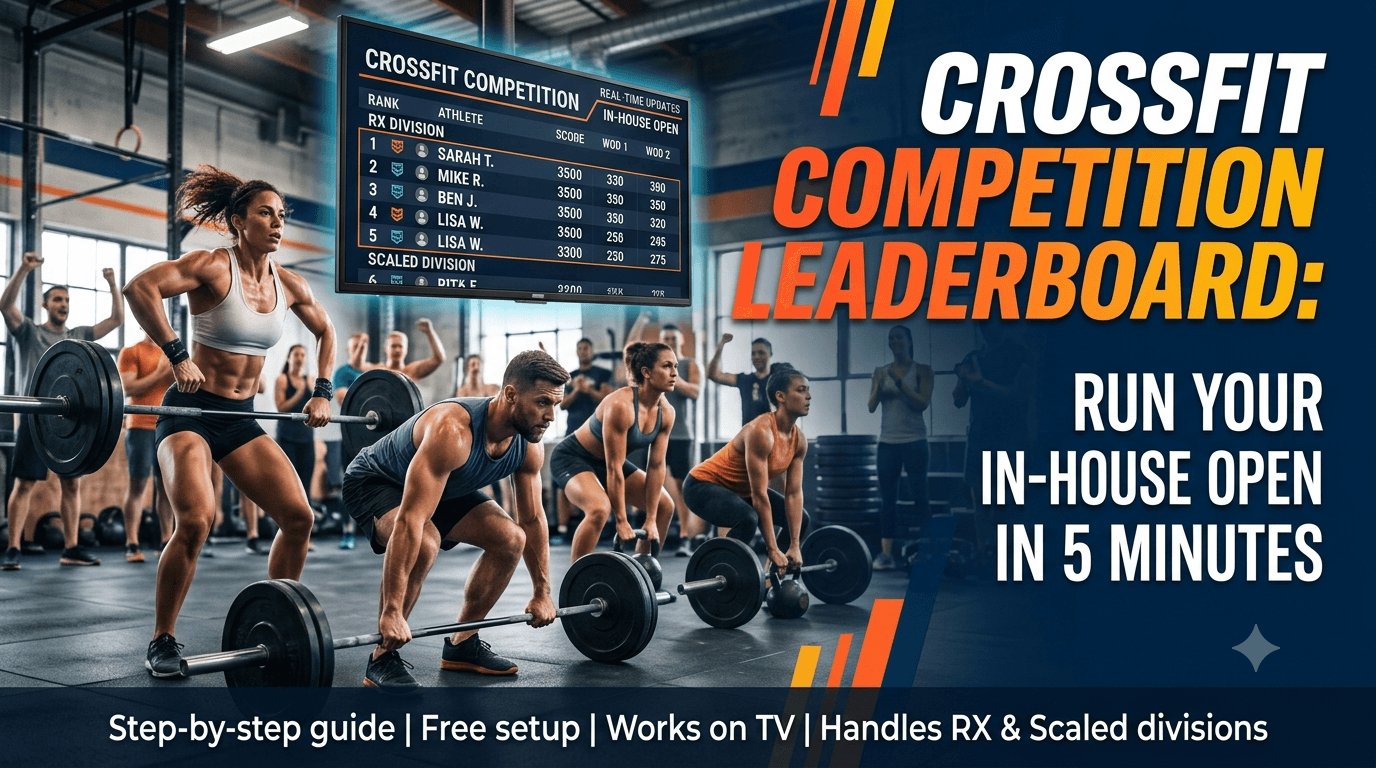
CrossFit Competition Leaderboard: Run Your In-House Open in 5 Minutes
Every gym coach knows the drill. The in-house Open kicks off Friday night. You've got 40 athletes, two divisions, and a Google Sheet that breaks every time two people edit it at the same time. Someone posts a score that doesn't look right. Half the gym is refreshing the spreadsheet. The other half is yelling scores across the floor.
There's a better way — and it takes about five minutes to set up.
Why Google Sheets Fails for CrossFit Competitions
Google Sheets is a spreadsheet, not a leaderboard. For a gym competition, it falls short in three specific ways:
- No real-time public view — athletes need to have the link and refresh manually. Scores don't push automatically.
- Edit conflicts — when two coaches enter scores simultaneously, you get errors or overwrites.
- No automatic ranking — you're writing formulas to sort and rank, and those formulas break when rows move.
A purpose-built leaderboard tool handles all three. Athletes see their rank update the moment a score is entered. No formulas. No refreshing.
What You Need
- A free TrackScore account — no credit card, takes 30 seconds
- A device to enter scores (phone works perfectly)
- Optionally: a TV or screen to display the live leaderboard during the event
That's it. No hardware, no app downloads for athletes, no setup beyond creating the leaderboard.
Step 1: Create Your Leaderboard
After logging in, click New Leaderboard from your dashboard. Give it a name — something like "Spring In-House Open 2026 — RX" works fine.
For CrossFit competitions, the most common metric setup is:
- For workouts scored by reps or rounds: Add a metric called "Score", type set to Numeric, higher is better
- For time-cap workouts: Add a metric called "Time", type set to Time (mm:ss), lower is better
- For workouts with a tiebreaker: Add two metrics — primary score first, tiebreaker second
The ranking updates automatically as scores come in. No sorting required.
Step 2: Add Your Athletes
You can add athletes one by one, or use the bulk import (paste a list of names, one per line). For a typical gym Open with 30-50 athletes, bulk import takes under a minute.
If you have a mixed-gender competition, you have two options:
- Create separate leaderboards for men and women (recommended — simplest)
- Use one leaderboard with a "Division" text field and filter by it in the view
Step 3: Handle RX and Scaled Divisions
The cleanest approach: create two separate leaderboards — one for RX, one for Scaled. Each gets its own public URL. Display them side by side on two TV tabs if you have two screens, or alternate between them on a single screen.
This avoids any complexity around cross-division scoring and keeps the rankings clean for each group.
Step 4: Enter Scores and Go Live
Share the public leaderboard URL before the event starts. Athletes (and their families watching from home) can open it on any device. It updates in real-time as scores are entered — no refresh button, no waiting.
During the event, you or your judges enter scores from the admin dashboard on your phone. Tap the athlete's name, enter their score, hit save. The leaderboard updates immediately for everyone watching the public link.
Step 5: Display on Your Gym TV
In TrackScore, every leaderboard has a TV Mode — a full-screen view optimized for large displays. Open the public leaderboard URL on whatever device is connected to your gym TV, switch to TV mode, and you're done. The display auto-refreshes as scores come in.
No Chromecast required. No app on the TV. Just a browser and the URL.
Running Multi-Week Events (Like the CrossFit Open)
For a 3-week event where each week is a separate workout:
- Create a leaderboard with three metrics — one per workout (Workout 1, Workout 2, Workout 3)
- Set the overall ranking to sum or average across all metrics
- Athletes can have partial scores each week — they'll still rank based on available scores
- Add each workout's scores after they're validated
This gives you a running total leaderboard that updates through the entire Open period.
FAQ
Can spectators see the leaderboard without logging in? Yes. The public URL is fully open — no account required. Anyone with the link can view live scores on any device.
Can I use TrackScore for the official CrossFit Open? No — the official CrossFit Open uses CrossFit's own platform for score submission to Sanctioned and Affiliated events. TrackScore is ideal for in-house competitions, gym challenges, and unofficial events where you control the scoring.
How many athletes can I track for free? The free plan supports up to 15 athletes per leaderboard. For events with more athletes, the Pro plan ($12/month) supports up to 50. If you're running a large invitational with 100+ athletes, the Business plan ($29/month) has no participant limit.
Can athletes enter their own scores? Not directly — scores are entered by whoever has admin access to the leaderboard. This keeps results controlled and validated. Judges or coaches enter scores from the dashboard.
Does it work on mobile? Yes. Score entry and the public leaderboard view both work on any smartphone browser. No app download needed.
Can I use it for multiple events? The free plan gives you 3 leaderboards simultaneously. If you run multiple events or want to archive past competitions while running new ones, Pro removes the board limit entirely.
Get Started
Create your first CrossFit leaderboard in five minutes — free account, no credit card required.
If you're running a competition this weekend, the fastest path is:
- Sign up
- Create one leaderboard per division
- Add athletes
- Share the public URL with your gym
Your athletes will be checking their rank on their phones before the first heat finishes.